Registration and login
Register a new account with learntick.com - use your username and password to login.
During registration you will get asked a captcha - this means you will have to type in the word from an image.
Introduction
You can learn much more with learntick than with standard applications, which do not make sure that they repeat the material.
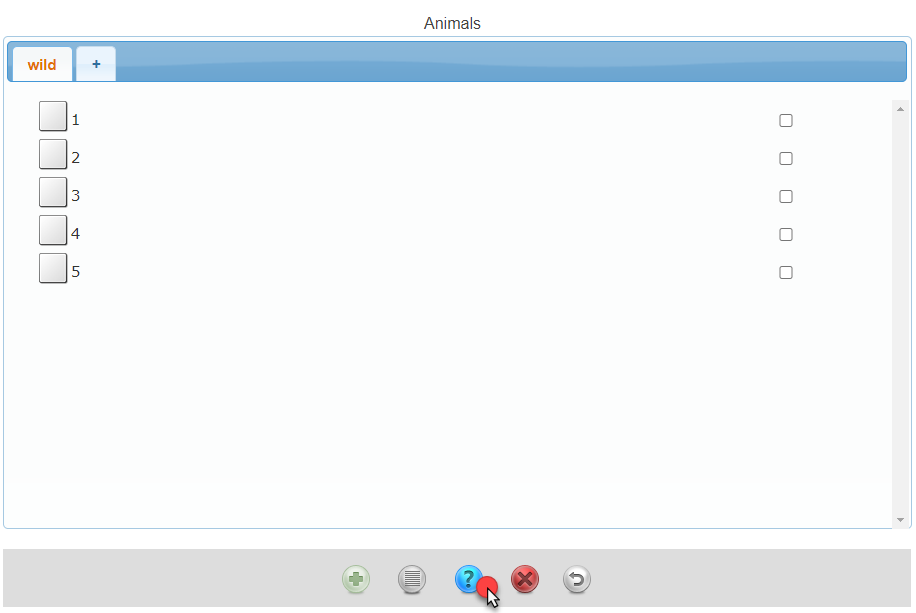
Simply test yourself by clicking on the test button on the bottom of the main window:
You will get asked some simple questions, like "What animals eat bananas?" because this is part of the example vocabulary that comes with a default account
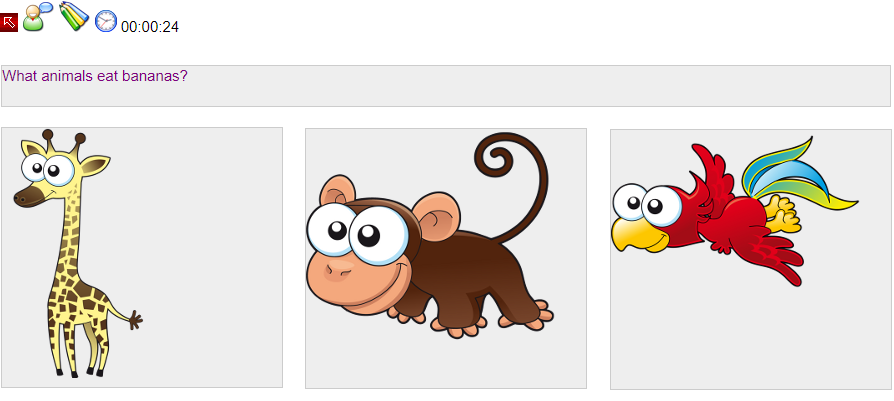
Simply click on the correct answer, which is the ape and the parrot:
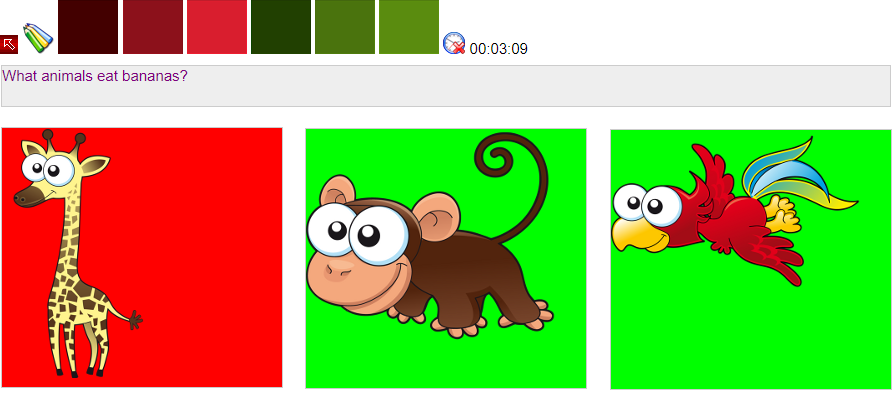
At the top of page you get shown these icons:

Please choose the very green icon on the very right. As long as you press on the red button you indicate that you didn't get the solution. In case you found the answer fastly, press the light green button.
Testing basics
The material will get repeated until all correct answers got found. When you have finished the first iteration over all items, you will get asked if you want to learn the final drill:
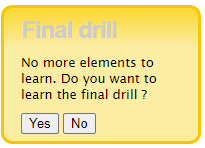
You should answer this with "yes" and repeat the material once again. Repeating the material makes sure that you will remember it better the next time. However, you don't have to go through the final
drill
In case you don't do the final drill, the vocabulary will get marked with the text: (learned), see below:
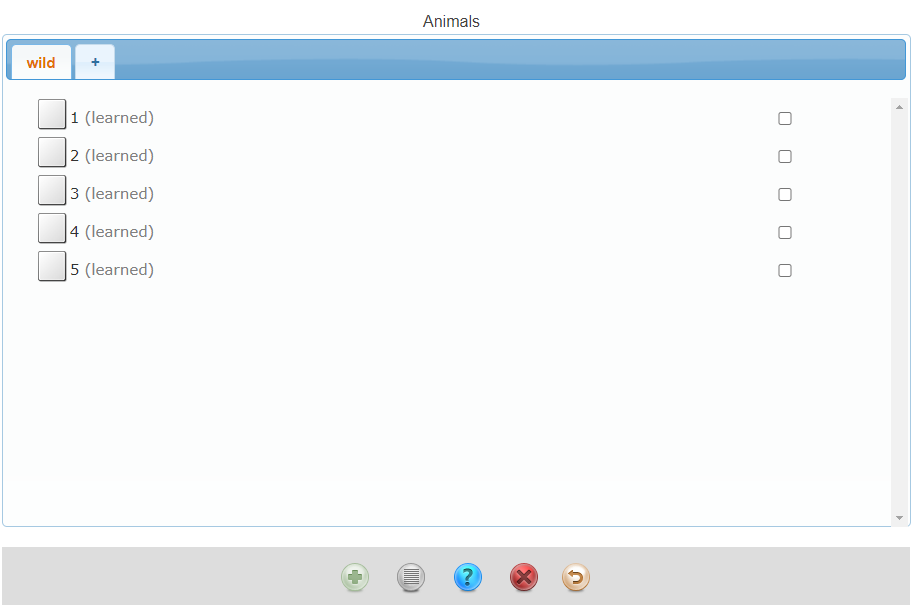
This means that you still have to do the final drill. Only when there is a date next to the vocabulary, you don't have to repeat the material anymore. This means, you can leave the final drill, but it is recommended to go through it to start learning
When you start the final drill the following text will appear on top of the page:
Yes, you are seeing right: final drill will appear while being in the final drill.
In case you left out the final drill because you didn't have the time to do it, but now you change your opinion, you can simply click on the test button on the bottom of the window where all vocabulary already got learned again:

Certainly you will go through the final drill
Different types of questions
In the application you will discover different kinds of questions:
- Drag and drop questions
- Input answer questions
- Show on answer questions
- Two types of multiple choice questions
Drag and drop questions
You have seen this kind of questions already before in this documentation. If you didn't read it, please take a look above.
Input answer questions
These questions require from you typing in the correct answer. An example for this is the following:
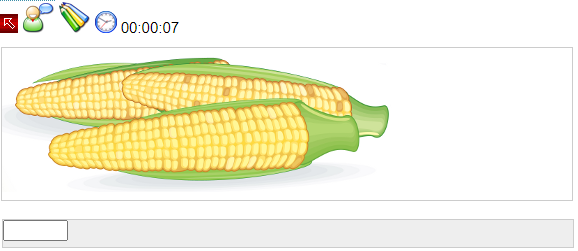
Please type in here the name belonging to the image. Most likely input answer questions will appear in combination with images, but you could also input answer questions can get combined with text to fill the gap.
Show on answer questions
These questions are the easiest type of questions, and they exist for improving the memory. You will get shown a text, most likely with a question:
Please click on the following icon:

This icon will show the answer which belongs to the question:
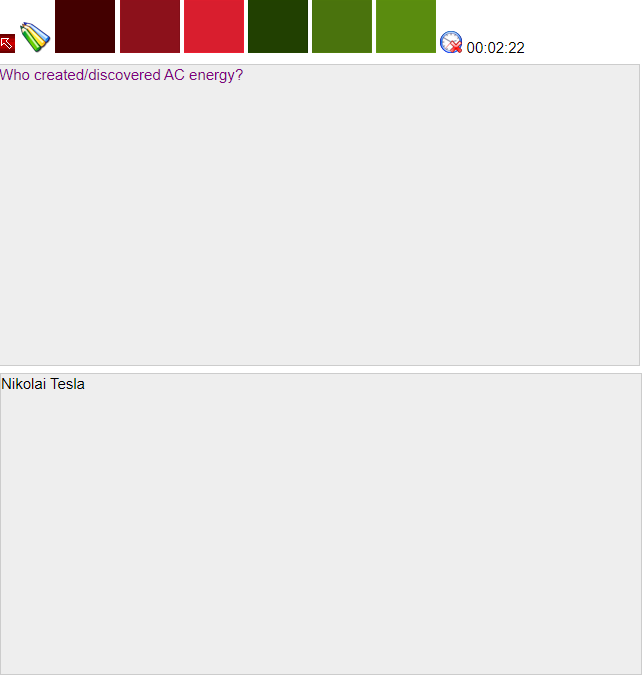
We will explain how to create these kinds of questions when it's about editing mode.
Multiple choice question #1
The first kind of multiple choice question looks the following way:
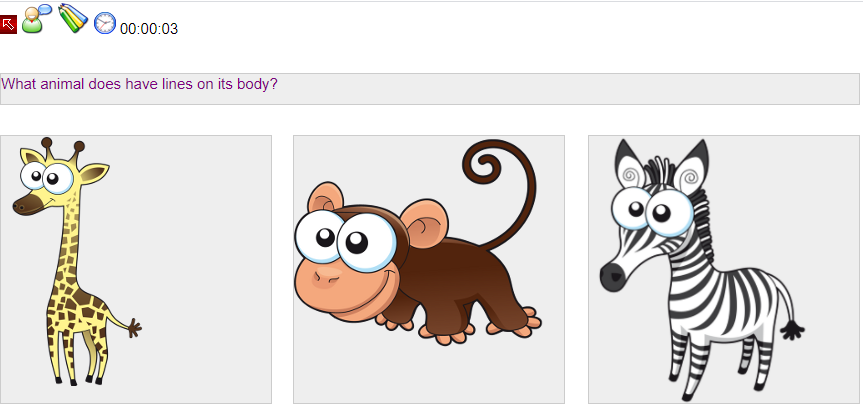
Multiple choice question #2
The second kind of multiple choice question looks the following way:
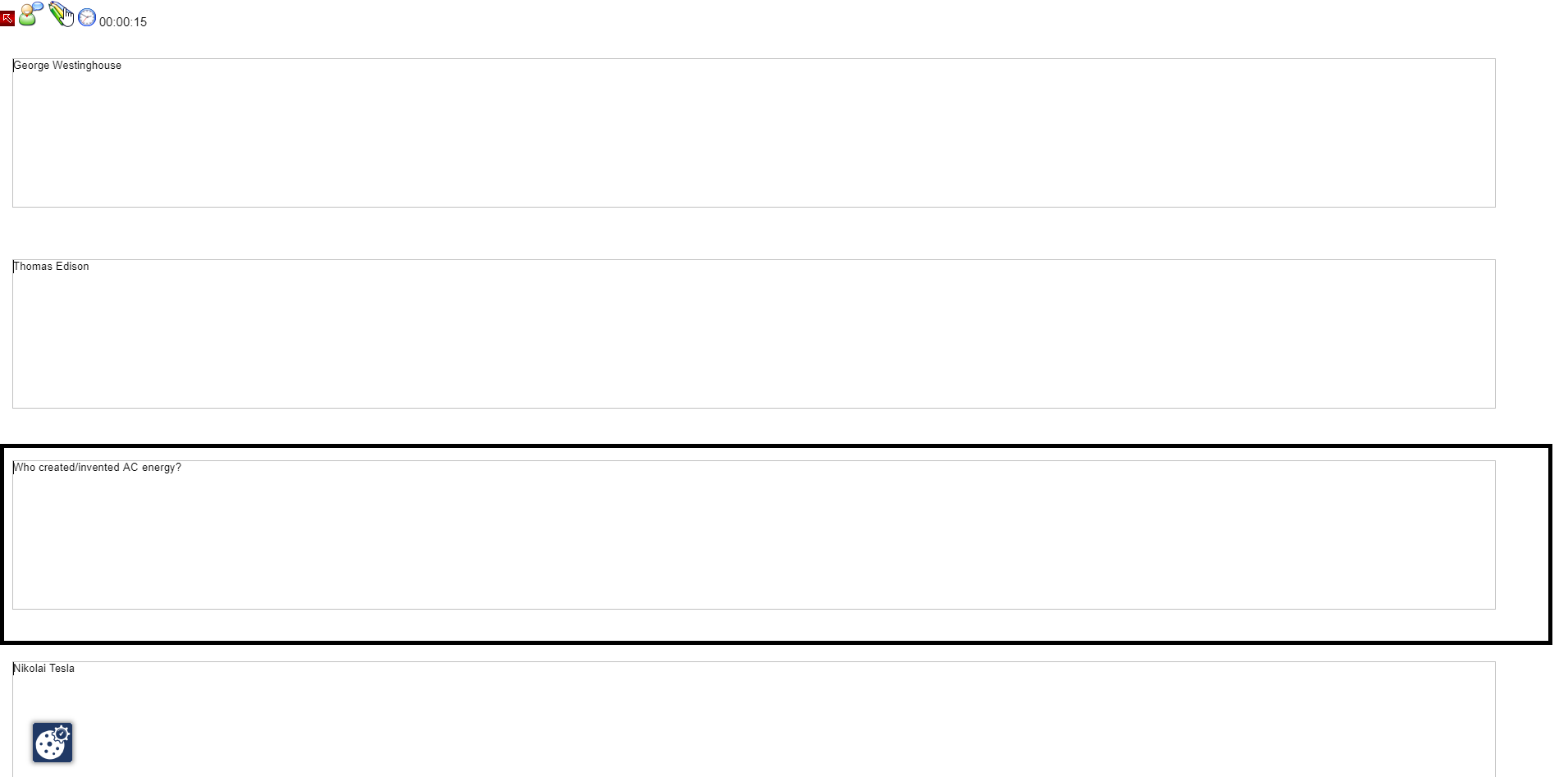
Please click here on the correct answer.
Editing mode - creating questions
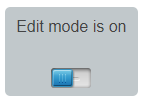
In order to be able to create own vocabulary please click on the following toggle:
so it changes to the following:
This will change the window icons in the following:
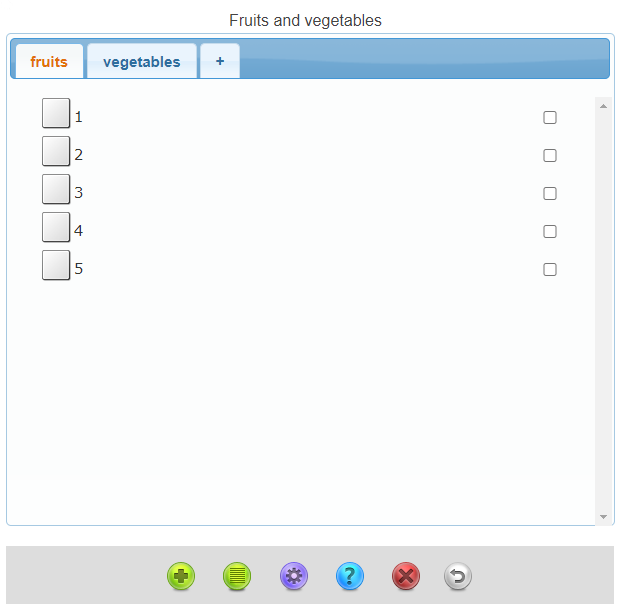
Add vocabulary

This will allow you to get to the card editor

This will open the multiple choice editor

This will open the mindmap editor
When you click on either the card, multiple choice or the mind map editor, you will always have this menu on top of the page:
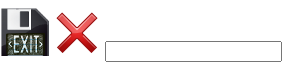
With this menu you can stop editing. When clicking on the disk, the changes get saved. A new entry will get created. Make sure to add a title in the input field, which will get shown in the mainframe.
If you click on the X button you will get asked if you want to abort editing.
In either case you will return to the previous page
Card editor
Use the card editor in combination with the context menu, please press the right mouse button on top of a card.
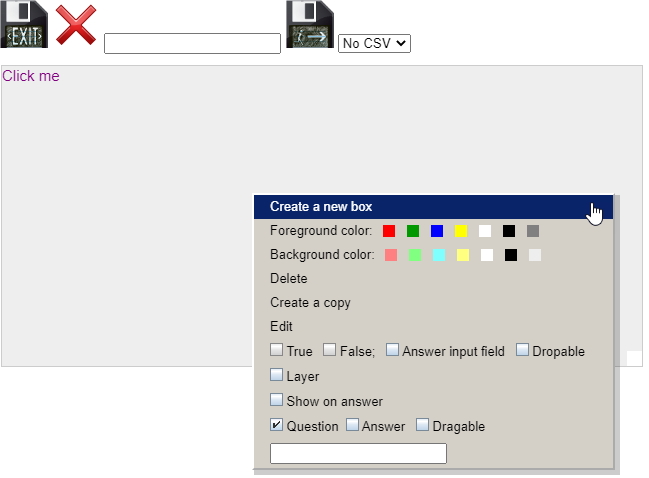
Create a new box
Creates a new box.
Foreground color
Sets the foreground color to the selected color.
Background Color
Changes the background color.
Delete
Deletes the selected card.
Create copy
Creates a copy of the card.
Edit
Edits the selected card.
True / False / Answer input field / Dropable
In order to enable the True or False checkboxes, please first click on "Answer" below. However, you can click on "Answer input field" if you want the card to have an input field with the text from the card to be typed in. Click on "Dropable" if you want this card to be a dropable card, for details see the details below the headline "Creating a drag and drop question".
Layer
Changes the opacity of the card
Show on answer
Makes this card only get visible after clicking on the icon
Question / Answer / Dragable
Enable Question if you want to have the card displayed right from the start, just as if it was a question. Click on Answer if you want this card to be a true question, or if you want it to be a wrong question. You then have to assign True or False above. Enable Dragable if you want the card to be dragged onto a Dropable.
Creating a drag and drop question
First, you have to assign the images you want to be dragged:
Multiple Choice

Create three different kinds of multiple choice questions:
text
Click on "text" to create a card which gets shown right from the start
correct answer
This card gets only shown when clicking on it, and the color of it is green.
Type in a correct answer here
wrong answer
This is a wrong answer. Normally, testing should stop when clicking on a wrong answer
Type in a wrong answer here
Mind Map
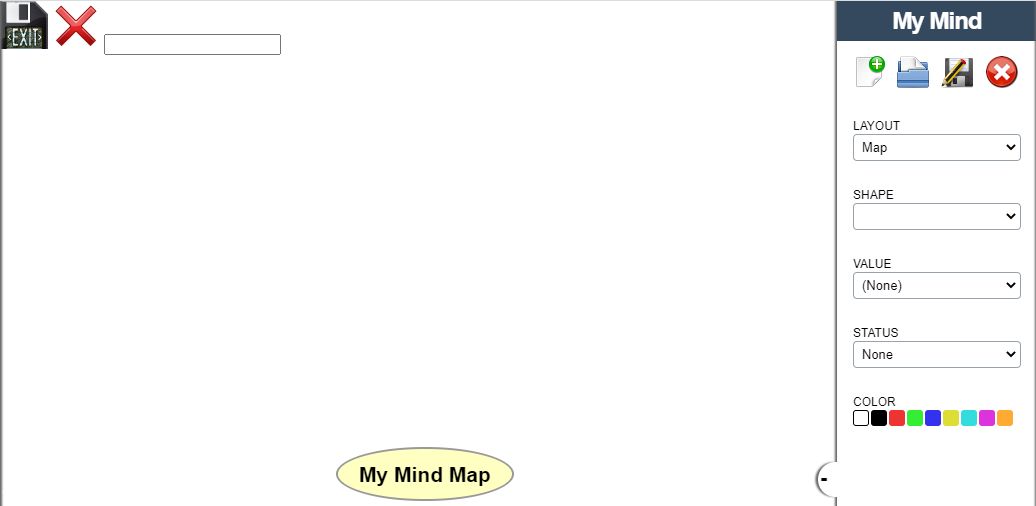
You can create MindMaps, by clicking on the right mouse button you can open a context menu
Also it is possible to import and export files from different existing Mind Map applications, like for example Freemind.
Use the menu on the upper left corner like you are used to, the menu on the right side is for editing the Mind Map.
